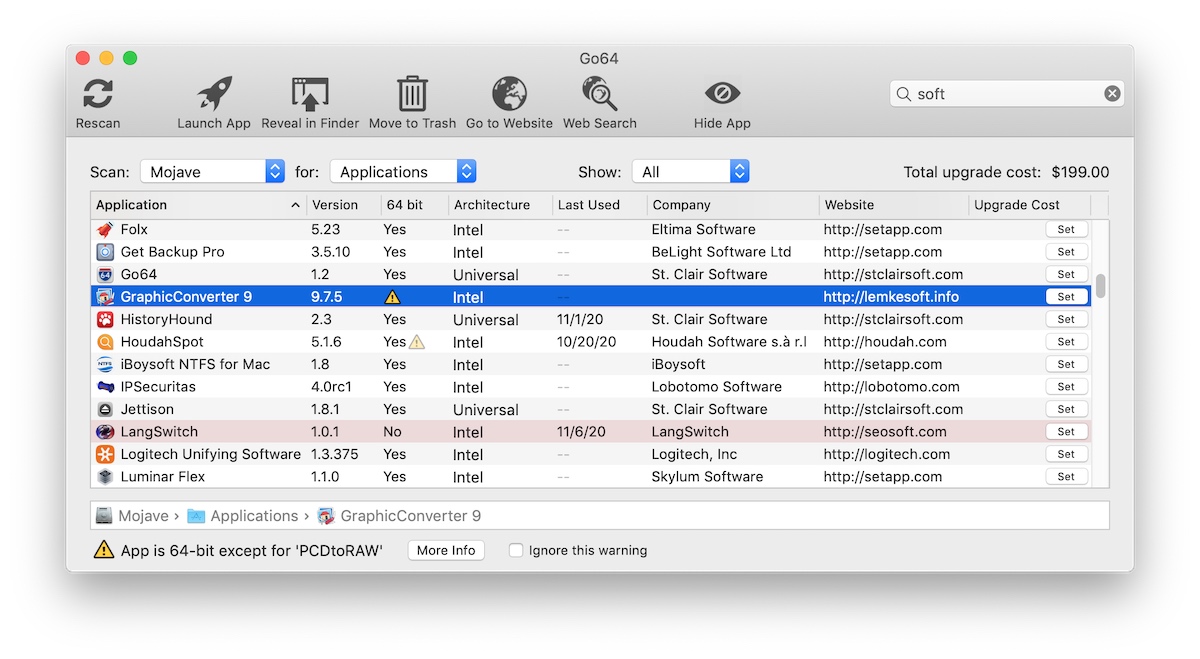
Quickly scan your disk for applications, see which ones are 32-bit, and find upgrade information with the click of a button.
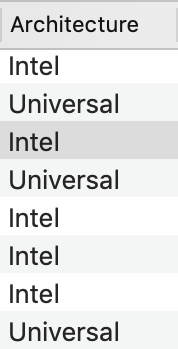
Get the most from a Mac powered by Apple Silicon
Check to see which of your applications are already "Universal Apps" and which ones still need to be upgraded. Universal apps contain the code necessary to run natively on both Intel and Apple Silicon processors, guaranteeing you get maximum performance from your new machine.
Are you running 32-bit apps that need to be upgraded? Go64 can help.
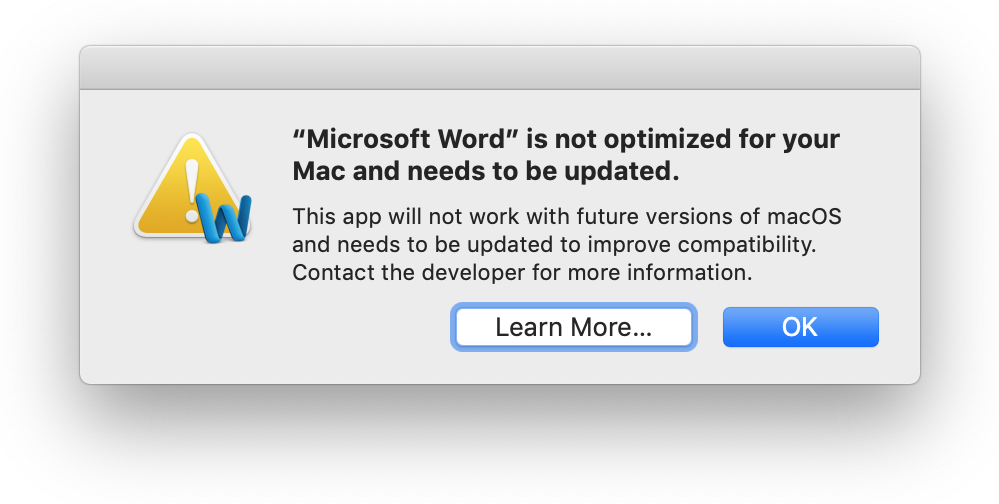
If you're running Mojave or High Sierra, you'll see an alert like this when you launch a 32-bit application. While it's not a crisis while you're still using the older OS, you'll need to update or upgrade those applications before you update to macOS 10.15 Catalina or any higher version.
macOS 10.14 Mojave was the last version of macOS capable of running 32-bit applications. Newer versions of macOS will no longer launch those apps! Go64 can locate all of your 32-bit apps so you don't get an unpleasant surprise after upgrading.
Exactly which apps stop working after Mojave and why?
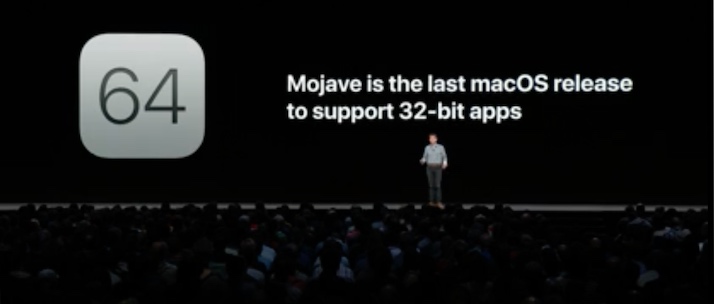
Any app that's built with Apple's 32-bit software libraries needs to be updated so it will run in 64-bit mode. These are primarily older applications, but some newer specialty apps may also still be 32-bit.
As Apple says, "The technologies that define today's Mac experience—such as Metal graphics acceleration—work only with 64-bit apps. To ensure that the apps you purchase are as advanced as the Mac you run them on, all future Mac software will eventually be required to be 64-bit."
How do I find the 32-bit apps on my system?
Apple's support article explains how to use the built-in macOS System Report to identify 32-bit apps on your system.
However, once they've been identified, looking them up and locating the developers' contact information can be a painstaking process if you've got more than a few. In addition, the System Report doesn't account for apps that are themselves 64-bt, but that contain 32-bit plugins, frameworks or services. These apps may or may not run correctly on macOS 10.15 or later. That's why we made Go64!
Get Go64 now - it's free!
For more information on 32-bit apps and compatibility, see Apple's support information at https://support.apple.com/en-us/ht208436.
The current version of Go64 is 1.4. It will run on any version of macOS from 10.10 (Yosemite) to 15.4 (Sequoia). For full list of changes in each release, see the .
For the real nit-pickers, here's a copy of the End User License Agreement.









 "Go64 quickly scans your internal drive for 32-bit applications that won’t be compatible after installing macOS Catalina and helps find potential upgrades to keep software working."